

User Guide
CarDSPlus-IN iOS App
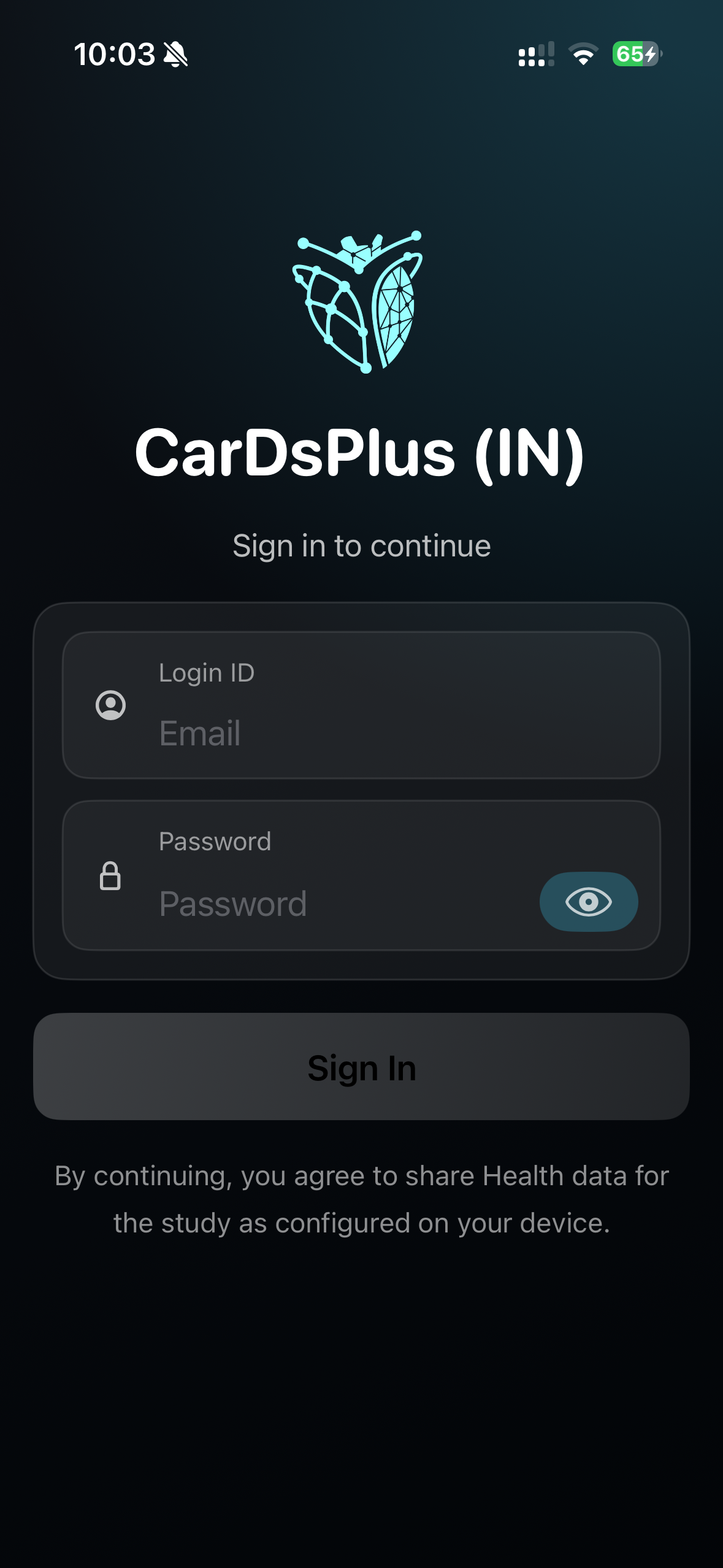
Sign In Page
On the Sign In screen:
• Enter your assigned email address
• Enter the password
• Click the Sign In button
Email Format
All login emails follow this format:
<number>@cardsplus.in
Examples:
1@cardsplus.in
25@cardsplus.in
100@cardsplus.in
Password
The password for all accounts is the same and will be conveyed to you via email.
Important Notes
• Login accounts are generated and managed by our team.
• We have currently created accounts from 1@cardsplus.in to 100@cardsplus.in.
• If you require additional accounts, please contact us and we will generate them for you.
Home Page
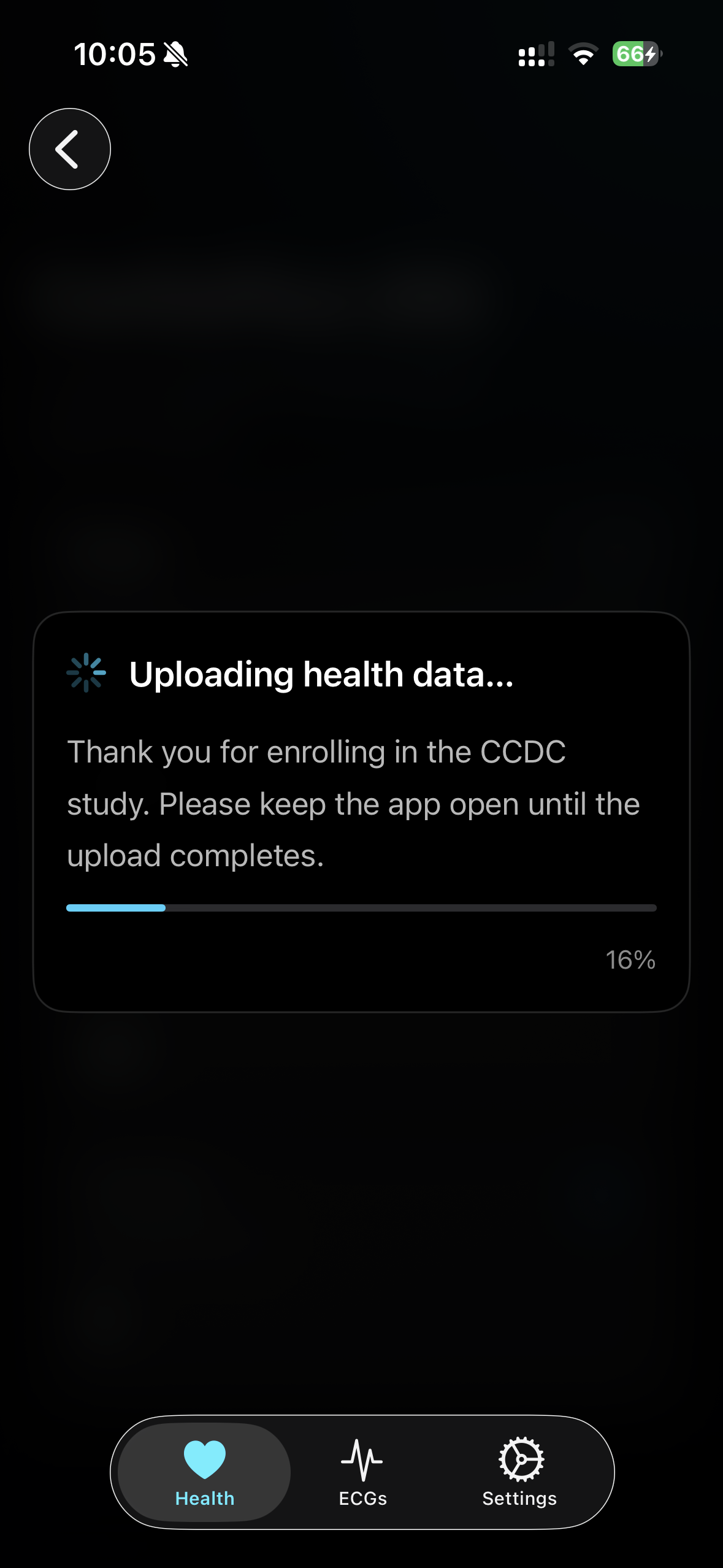
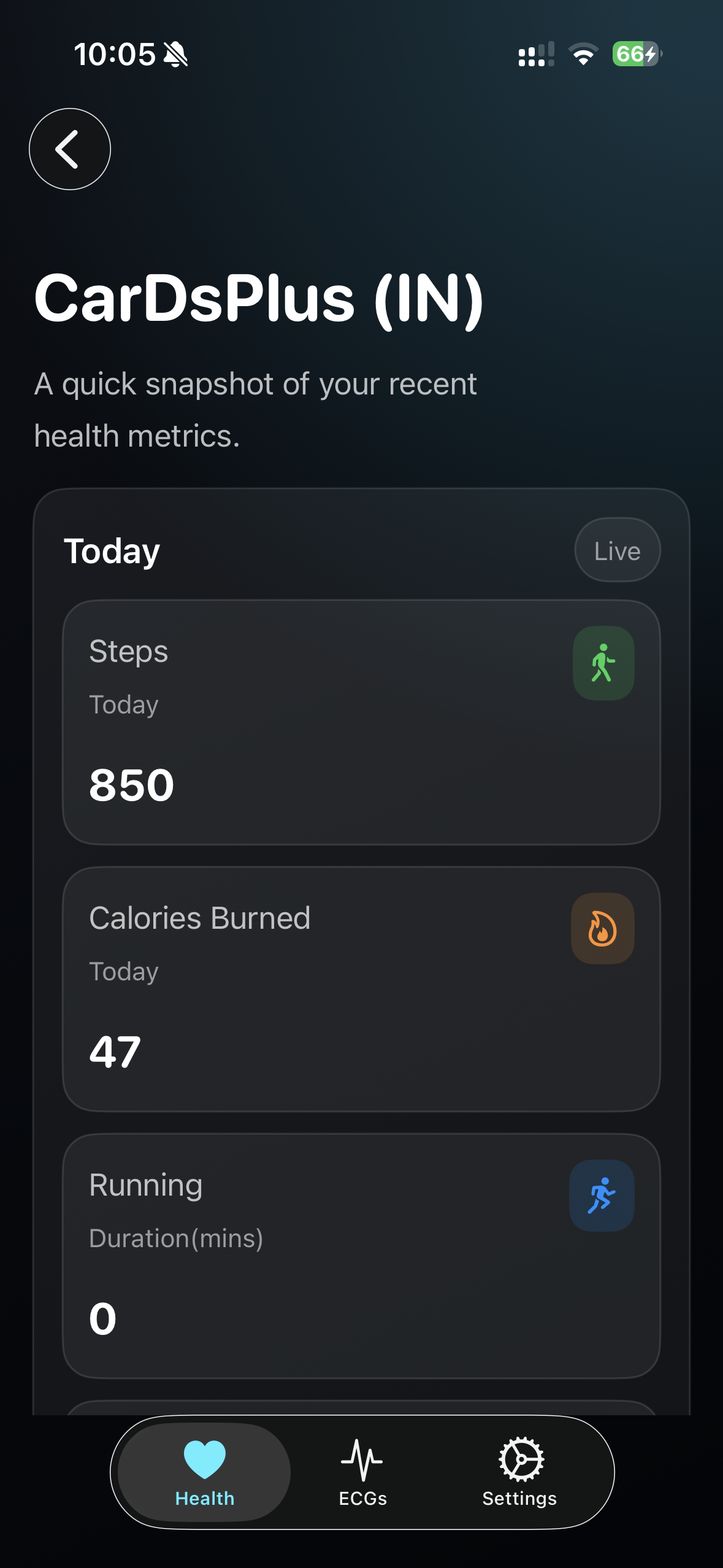
Once you successfully sign in, the app will automatically begin securely transmitting health data from Apple Health to secure remote storage.
A confirmation pop-up will appear indicating that the transmission has started.
• The pop-up will remain visible while the data is being transmitted.
• Once transmission is complete, the pop-up will disappear automatically.
• Your health metrics will then be displayed on the screen.
This process is automatic and does not require any additional action from the user.
Settings Page
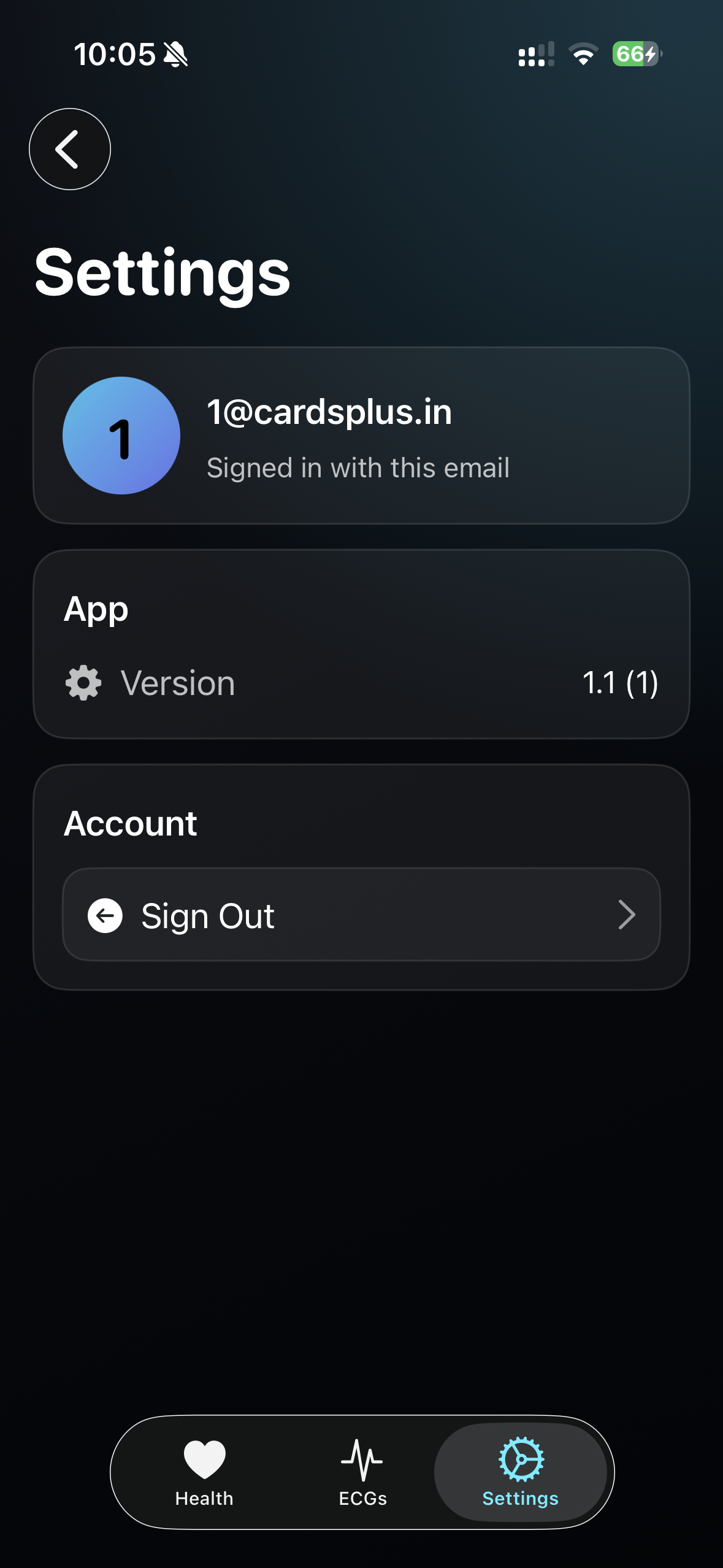
To sign out of your account:
• Navigate to the Settings page
• Tap the Sign Out button
You will be logged out of the application and redirected to the Sign In page.